

In Juriba DPC v5.18, we've introduced near-real-time data processing, replacing the
overnight batch ETL with a queued service that processes imported data changes within seconds or minutes. This release also delivers a major list management overhaul — new grouping, filtering, descriptions, and dependency visibility that make lists far easier to find, understand, and safely change at scale.
What's new in Juriba DPC 5.18?
Near-real-time data processing
Imported data changes now appear in near real time instead of waiting for an overnight batch.
We've replaced the batch-based ETL (triggered by SQL Server Agent) with a new queued data
processing service that continuously monitors for incoming changes and processes them within
seconds or minutes. This means faster visibility of changes for your teams, more predictable
system load spread across the day rather than concentrated overnight, and a foundation for more
time-sensitive workflows such as those driven by application vulnerabilities.
For on-premise customers, this new processing is optional in 5.18 — you choose when to enable
it, and existing behavior continues until you do. For cloud customers, it will be enabled through
a managed, phased rollout. Note that if you currently delete data before re-loading it, you'll need
to change that approach, and legacy data imports should be migrated to Integration Connector before enabling the service. Your Customer Success Manager will help you plan the switch.
Default grouping in the list panel
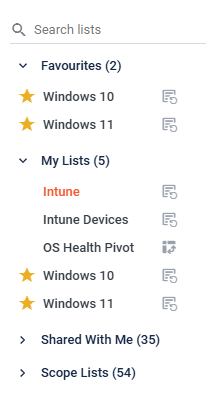
The list panel now organizes your lists into four default groups — Favourites, My Lists,
Shared with Me, and Scope Lists — making it much easier to navigate when you're working with a
large number of lists. The grouping helps you tell at a glance which lists you own, which have been
shared with you, and which are being used as scope elsewhere in the platform. Lists shared purely
for scoping are kept in their own group so they don't clutter the main view, while remaining easy
to find when you need them. Each group shows a count, and empty groups are hidden.
 Filter lists by project and tag
You can now filter your lists by project or by tag to quickly narrow a long list panel down to just what's relevant. Selecting a project shows only the lists related to that project, tag filtering supports multiple selections, and the two can be combined for more targeted results.
Active filters stay visible on screen so you always know what's applied. These filters replace the previous Group By option with a more flexible way to navigate lists at scale.
List descriptions
We've added a description field to the List Information panel. Use it to record what a list is for, its scope, or any other detail that helps others understand how it's meant to be used, particularly valuable when lists are shared across teams or reused across projects.
Dependency visibility and save/delete warnings
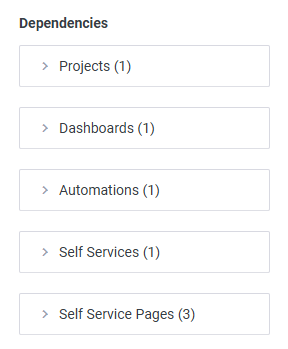
The List Information panel now includes a dependency section that shows everywhere a list is currently used: project scope, automation scope, self-service scope, self-service page scope, dashboard widgets, and filters for other lists. And when you try to change or delete a list that's used in one of these places, a warning is shown before you commit, so you can understand the potential impact before making a change that could ripple across the system.
New $TaskCapacitySlot email placeholder
We've added a new $TaskCapacitySlot placeholder that lets email notifications reference the capacity slot of a specific task. Following the same pattern as $TaskName and $TaskValue, you append the task's ID to the placeholder, for example $TaskCapacitySlot34 — and the language suffix is supported too (e.g. $TaskCapacitySlot34|DE). Previously, the $CapacitySlot placeholder only resolved when the triggering task owned the capacity slot, showing <placeholder not found> in other cases.
The new placeholder gives you a supported, predictable way to reference any task's slot, while $CapacitySlot continues to refer to the triggering task.
More frequent automation and onboarding schedules
Automations and onboarding can now run on twice-daily and hourly schedules, in addition to the existing daily option. This gives you finer control over how often work is processed, complementing the new near-real-time data processing.
What's changed in DPC 5.18?
Easier access to favourite and default lists
Favourite lists now display a prominent star icon directly on each list row, and clicking it toggles favourite status instantly — no more digging through the context menu or hunting for a small, easy-to-miss indicator. Favourites are promoted into a dedicated Favourites group at the top of the panel. Your default list is also easier to spot: it's pinned to the top with a home icon, and you can change it using the new Set as Default option in the context menu.
Clearer Stages & Tasks when building lists
We've reorganized how project stages and tasks appear in the columns and filters panel. Tasks are
now grouped under their corresponding stage (in configured stage order, with tasks in task order), and the section has been renamed Stages & Tasks. Task names no longer repeat the project and stage prefix, so the part you're scanning for comes first. Last changed date and user have moved
into a dedicated Tasks History section so they don't clog the view, the panel is now resizable for navigating larger hierarchies, and sticky headers keep the current stage visible as you scroll. The expand/collapse icons have also been updated to match the rest of the product.
Persisted list preferences
Your list preferences are now remembered between visits. Filter by project or tag, or expand
and collapse groups, and those choices are restored when you return. Preferences are stored per
object type, so your views across different applications and object lists don't interfere with each
other.
Consistent information and security controls across lists and dashboards
We've standardized the information and security controls so they behave the same way across
lists and dashboards. You no longer have to think about whether you're in a list or a dashboard. The Info and Security options work consistently in both, reducing confusion and the need for
extra explanation.
Automation log now shows the last 14 days by default
The Automation Log grid now defaults to the last 14 days rather than 90. This returns far fewer records to the screen, making the log load faster and more reliably — particularly for larger, on-premise environments where the log could previously time out.
Cleaner global search results
Deleted objects no longer appear in global search. Previously, a deleted object could show up as "Unknown" and lead to a 404 when opened — especially confusing where several similarly-named objects had been deleted.
🛠️ What's been fixed
Mailbox folder permissions no longer block import
Imports and upgrades no longer fail when mailbox folder permissions data is present. Previously, where a user had the same permissions across more than one folder, the missing primary key column could cause upgrade scripts or mailbox data imports to fail. This is now handled correctly.
List search now works on lists with many columns
List search no longer fails on lists with large numbers of columns (60+). Searching now returns
results correctly regardless of how many columns the list contains.
Application column filter on User Details now returns results
Filtering by the Application column on the User Details › Applications tab now returns the matching objects as expected, rather than showing an empty grid.
Self-service pages display correctly when the first page is hidden
End users no longer see "This is not a valid self service" when the first page of a self-service has been hidden on the builder page. The self-service now displays correctly.
Correct French translation in the Sent Emails report
The French translation of the "Sent" emails report is now correct.
Consistent API results for large, paged datasets
API (v2) requests that page through large datasets now return consistently ordered results.
Previously, where no sort order was specified, results on very large datasets could come back in an
inconsistent order, leading to some records being duplicated or missing across pages. A default
ordering is now applied so paged results are reliable.
Running multiple automations at once no longer errors
Triggering several automations at the same time no longer causes an error.

.png?width=1200&height=627&name=DPC_Featured%20Image_Manage%20Lists%20Juriba%20DPC%205.18%20(1).png)
.png?width=1200&height=627&name=DWOA_Featured%20Image_The%20Practical%20Business%20Case%20for%20Digital%20Workplace%20Operations%20Automation_Blog%20(1).png)